BlogProduct
AI for Fusion 360: what an agent can do inside your design
What AI can actually do inside Autodesk Fusion today: building parts, repairing the timeline, editing assemblies, drawings, and exports, with native features you can edit.
Most AI tools for CAD produce a shape somewhere else and hand you a file. That’s useful for a concept, and not much help with the model you already have open in Fusion, with its timeline, its parameters, and the twenty components that depend on one sketch. This post covers what an agent working inside Autodesk Fusion (formerly Fusion 360) can do today, and what to look for before you trust one with a real design.
Inside the design, not beside it
Fusion exposes the design through its API and, more recently, a built-in MCP server. An agent that uses them can read the timeline, sketches, parameters, components, and joints, and create features the same way you do. The difference shows up the next day: when you change a dimension, the model rebuilds, because the agent’s work is ordinary timeline history.
What works well today
- Building a part from a brief, a drawing, or a hand sketch, with the dimensions you’ll change as user parameters. See a part modeled from a hand sketch.
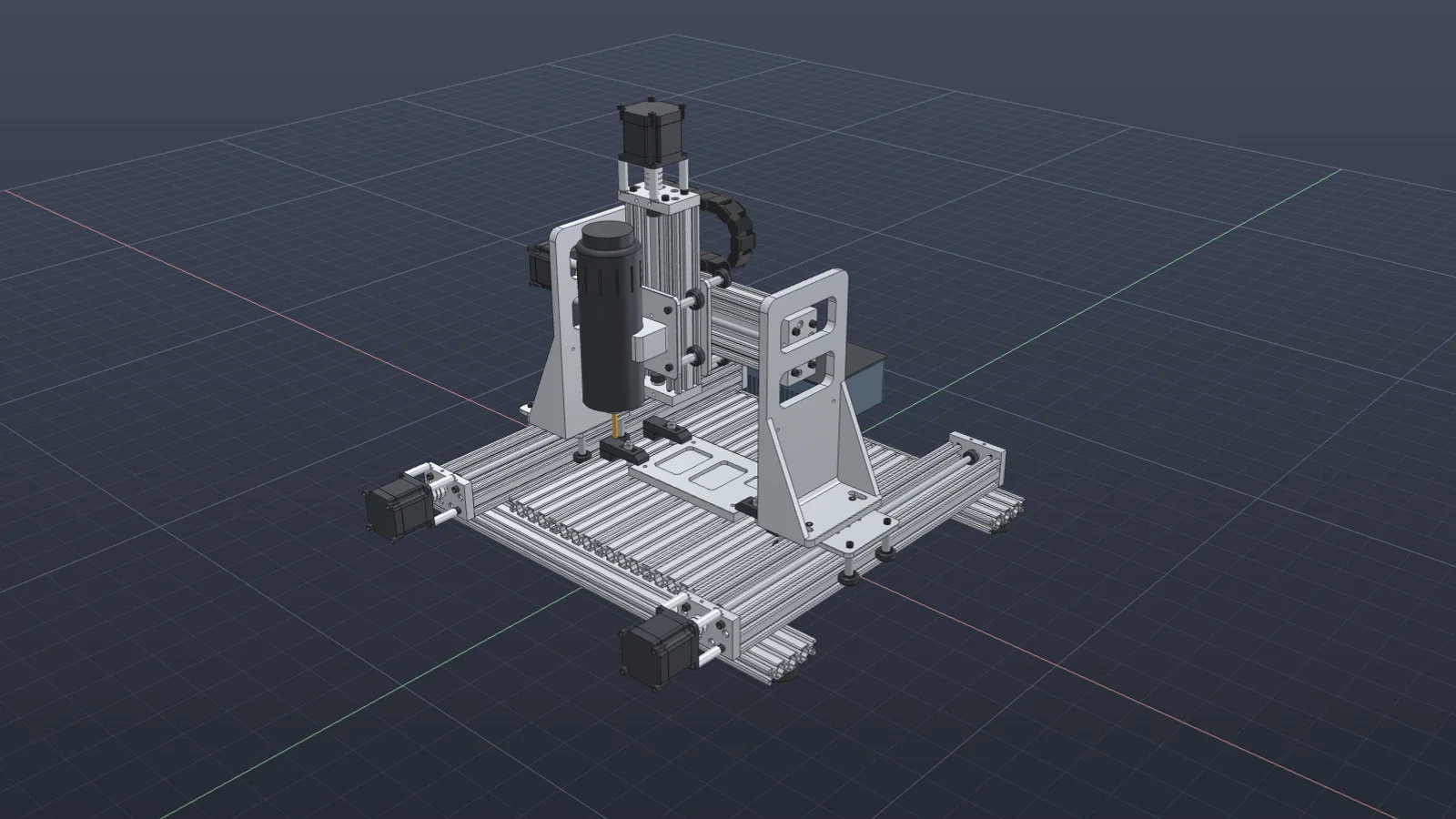
- Editing inside an assembly. Before changing a width, the agent checks how the sketch is dimensioned and which joints depend on it. See resizing a bracket inside a CNC assembly.
- Repairing the timeline after an edit: finding the first red feature, reselecting lost references by geometry, and recomputing what follows. See timeline repair.
- Converting meshes, fully constraining sketches, patterning repeated geometry, and batch exporting bodies to STEP.
- Making drawings: base and projected views, dimensions, callouts, and a PDF. See a shop drawing from the model.
- Answering questions about the open design, with the steps shown on your own model.
What to check before you trust it
- Results land in the timeline as features, not as an imported body.
- It measures its own work. Ask for clearances, wall thickness, or a STEP export that reopens, and expect numbers measured from the solid.
- Every action is listed, so you can follow what it changed and undo it in Fusion if you need to.
- It respects what you didn’t ask it to touch. A good request names what must stay fixed, and a good agent keeps to it.
How Vector connects
Vector turns on Fusion’s MCP server in Preferences → General → API and works through it, with no add-in. It takes screenshots of Fusion to check results and can click through dialogs. Setup takes a few minutes: see Vector for Fusion and the quickstart.
Questions
- Does Fusion have AI built in?
- Autodesk ships its own assistant features in Fusion. An external agent like Vector works alongside them through Fusion’s MCP server and API, and acts on the design you have open.
- Will an AI agent leave me with dead geometry?
- Not if it works through the API. Vector creates sketches, features, joints, and parameters in the timeline, so the result edits like anything you built by hand.
- Do I need an add-in?
- No. Vector turns on Fusion’s built-in MCP server in Preferences and connects through it.
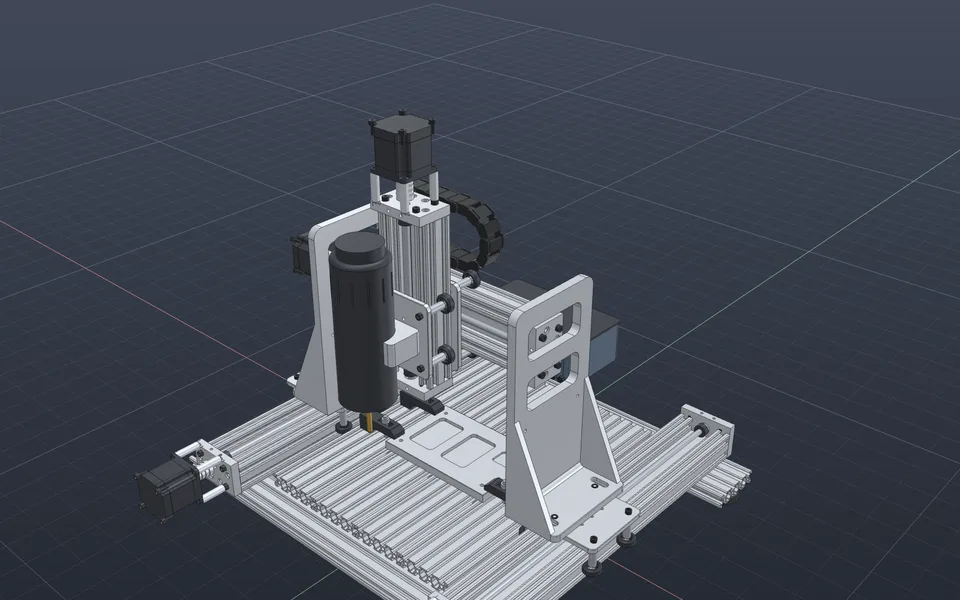
Resize a part inside an assembly
Vector checks how the part is dimensioned and which joints depend on it before changing the width, so the slots, holes, and mating parts end up where you intended.
Watch it in Vector