BlogProduct
How to choose an AI tool for CAD: seven questions to ask
A practical checklist for picking an AI tool for mechanical CAD: native features, your existing models, verification, drawings, data handling, and cost of mistakes.
There are now dozens of AI tools that claim to do CAD. Some generate shapes from text, some answer questions, and a few work inside the CAD application you already use. They’re built for different jobs, and the demos look alike. These seven questions separate them quickly.
1. Does it work on the models you already have?
Most engineering time goes into changing existing designs, not starting blank ones. A tool that only creates new parts helps at the very start of a project. One that can open your assembly, read its constraints, and change it helps every day after that.
2. Are the results native features?
A mesh or a dumb solid looks finished until someone needs to change it. Ask whether the output arrives as sketches, features, mates, and parameters in your timeline or feature tree.
3. Does it check its own work?
The most expensive AI mistakes are the plausible ones. Look for a tool that measures the result: clearances, interference, wall thickness, a motion study ratio, or a STEP file that reopens. If it only describes what it meant to do, you’re doing the checking.
4. Can you see every step?
You should be able to follow what changed, in order, and undo it in the CAD application. Hidden scripts and silent edits make review impossible.
5. Does it handle the work around the model?
Drawings, bills of materials, exports, and calculations take as long as modeling. A tool that stops at geometry leaves the slowest parts of the job to you. See a shop drawing from the model and a BOM from an assembly.
6. Does it fit how your team works?
Check the applications and versions it supports, whether it uses your existing licenses, and what it needs installed. A tool your team has to switch CAD systems for won’t get used.
7. What happens when it’s wrong?
Every tool will be wrong sometimes. The question is whether you’ll notice. Native features, listed steps, and measured checks make mistakes cheap to find. A file with no history makes them expensive.
A quick way to test
Pick a real part you know well and a change you’d normally make in an afternoon. Ask for the change, ask for a measured check, then edit the result by hand. Twenty minutes tells you more than any demo. To try it with Vector, download it and follow the quickstart.
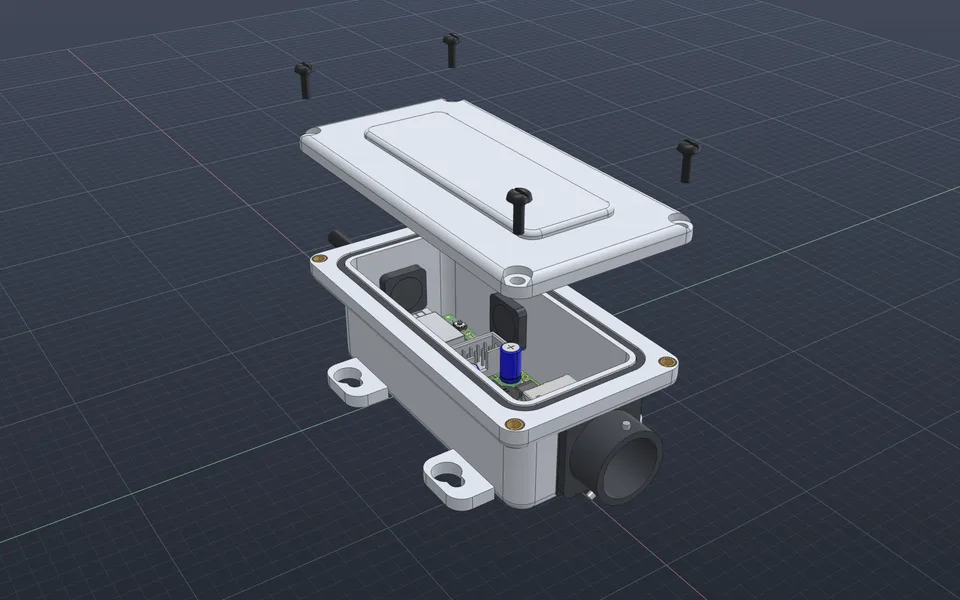
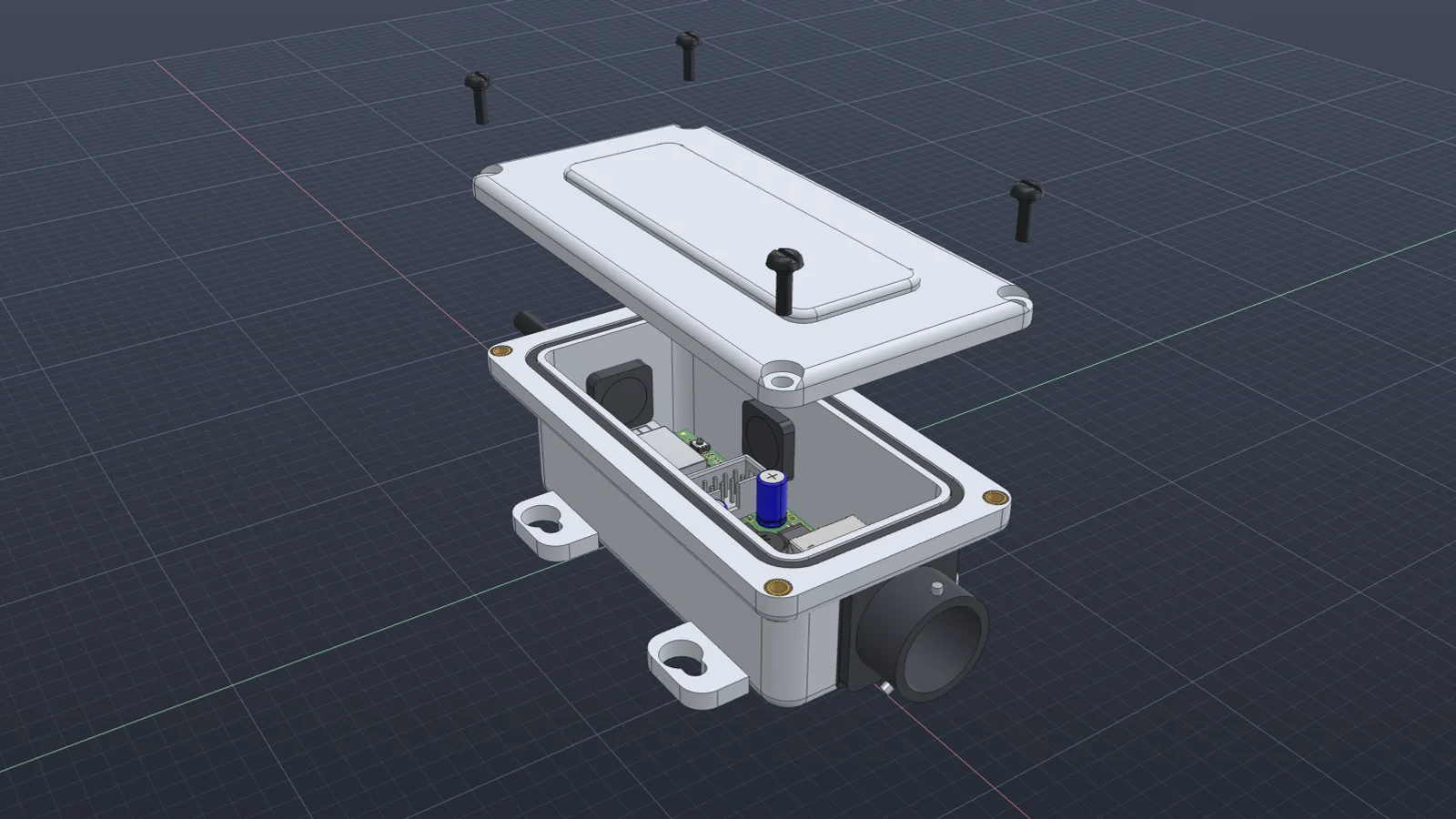
Design a sealed enclosure around a circuit board
Vector measures the board’s outline, mounting holes, and tallest parts, then models a gasketed case with inserts, sealed connectors, and cable glands, and checks every clearance before you print.
Watch it in Vector