BlogGuides
How to fix lost references in Fusion 360 after a design change
Sketches and features in Autodesk Fusion lose their references when upstream geometry changes. Here’s how to find them, relink them, and stop it happening again.
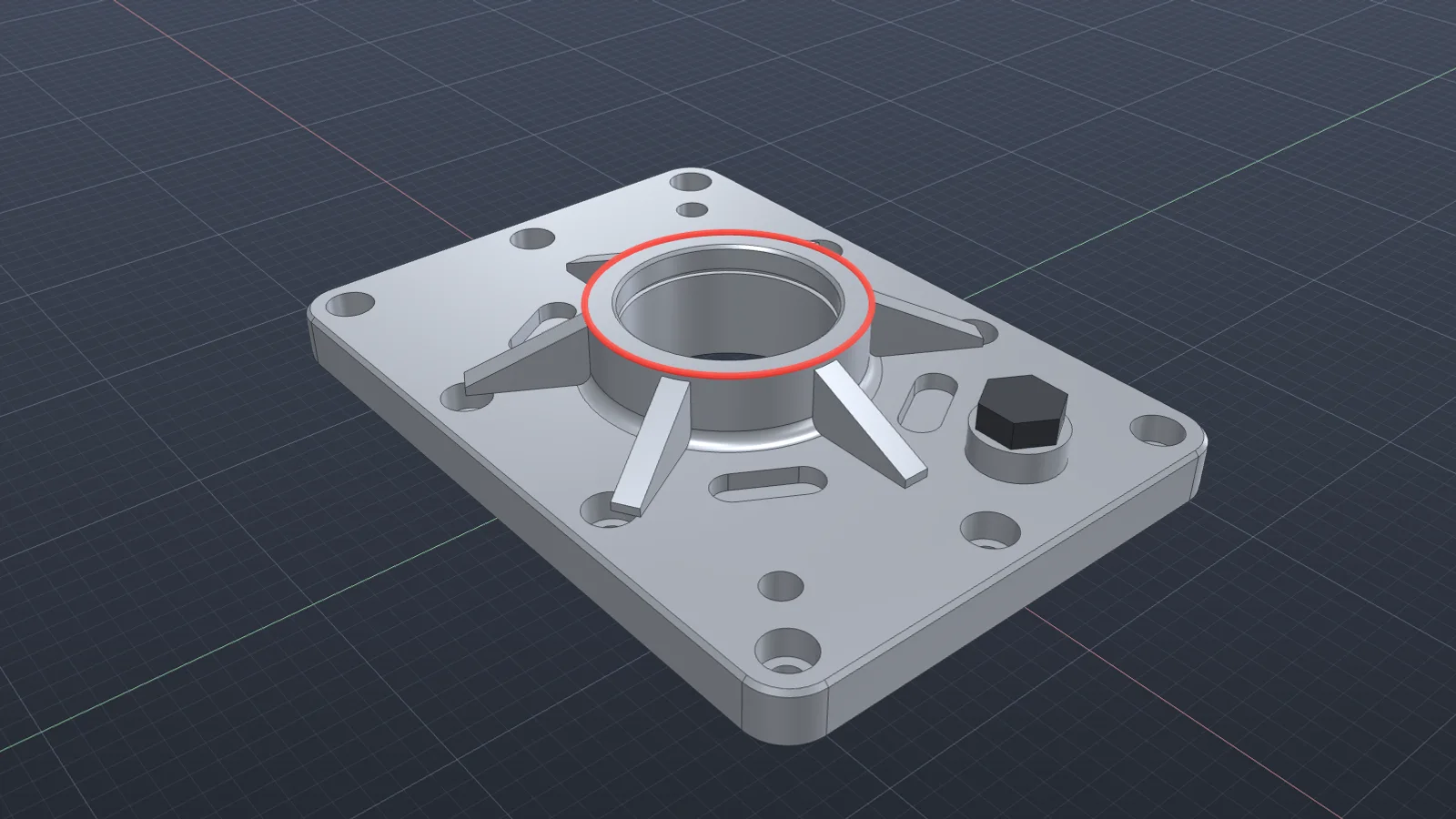
A lost reference is a feature or sketch that pointed at something that no longer exists in the same form: a face that was split, an edge that was renumbered, a component that was swapped. Fusion flags them in the timeline and, for sketches, on the projected geometry itself.
Where they come from
- Projected edges in a sketch whose source face or edge changed.
- A sketch plane on a face that a later edit split or removed.
- Fillets, chamfers, and shells that referenced edges by position.
- Joints that referenced geometry in a component you replaced.
Relink them
- Work from the first flagged item in the timeline, not the last.
- For a sketch, open it and look for projected geometry shown as broken. Reproject from the new geometry, or break the link if the sketch should stand on its own.
- If the sketch plane is the problem, right-click the sketch and redefine its plane.
- For features, edit them and reselect the faces or edges by what they are.
- For joints after a component swap, reselect the joint origins on the new component.
- When it’s ambiguous, like two faces that both look right, stop and decide which one you meant. Guessing here causes the next failure.
Make it less likely next time
- Reference origin planes and construction geometry for anything that defines position.
- Keep sketches fully constrained, so they don’t drift when a reference moves.
- Avoid projecting edges you don’t need.
Doing it with Vector
Vector relinks sketches and features to stable planes and axes, and asks before choosing between faces that could both be right. See it recover lost references.
Recover lost references
Vector relinks broken sketches and features to stable planes and axes, and asks before choosing between ambiguous faces.
Watch it in Vector