BlogGuides
Fusion 360 timeline errors: how to fix yellow and red features
Why features in the Fusion timeline turn yellow or red after an edit, how to find the first real failure, and how to repair it without undoing your change.
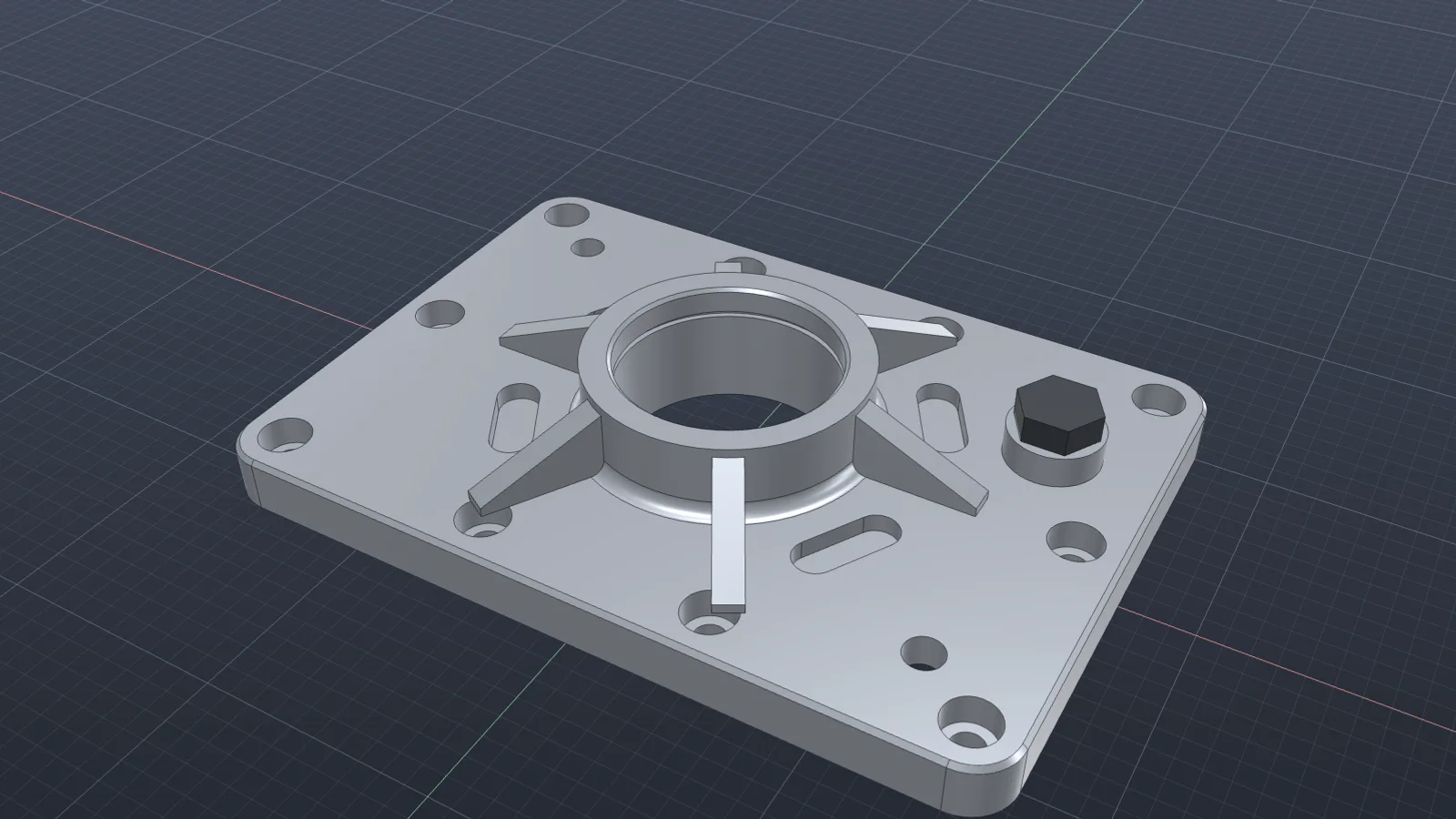
You change one dimension, and half the timeline in Autodesk Fusion turns yellow and red. The model looks fine or mostly fine, but the history is broken, and the next edit will make it worse. Here’s how to read what Fusion is telling you and repair it properly.
What the colors mean
| Color | Meaning | Typical cause |
|---|---|---|
| Yellow | Computed with a warning | A reference was lost and Fusion picked a replacement |
| Red | Failed | The feature can’t find its geometry or can’t build it |
Why it happens
Features refer to faces, edges, and sketch profiles. When an upstream edit changes the topology, for example a bolt pattern that goes from 8 holes to 10, the edges get renumbered. A fillet that pointed at “edge 14” now points at a different edge or at nothing. Fusion either guesses (yellow) or gives up (red).
Fix it in order
- Hover over each colored feature and read the message. Note which one comes first in the timeline.
- Drag the timeline marker to just after that first feature, so later failures don’t distract you.
- Right-click the feature and choose Edit Feature. Reselect the edges, faces, or profile it should use. Pick them by what they are, like the top edge of the boss, not by where they happen to be.
- If it’s a sketch, check its projected geometry and its plane. Redefine the sketch plane if the face it sat on has changed.
- Move the marker forward one feature at a time. Many later warnings clear once the first is fixed.
- When the timeline is clean, measure the thing you changed to confirm it’s still what you asked for.
If the same feature breaks every time you edit, give it something more stable to refer to: a construction plane, a sketch point, or a named face from an earlier feature.
Doing it with Vector
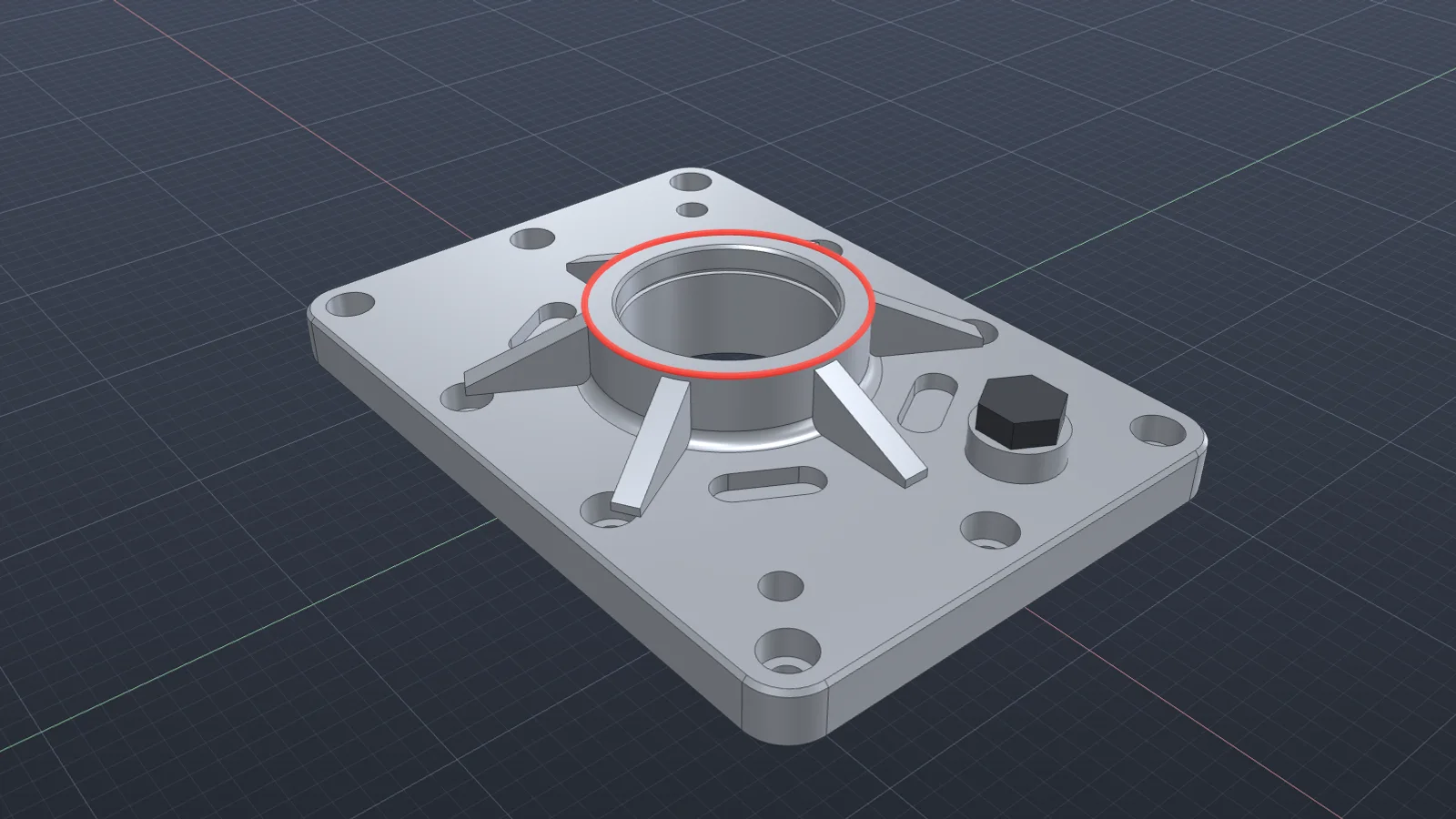
Ask Vector to fix the timeline without changing your edit. It reads the timeline, finds the first failing feature, reselects its lost reference by geometry, recomputes what follows, and measures the edit afterward. Watch it repair a cover plate after a bolt pattern change.
Questions
- What’s the difference between yellow and red in the Fusion timeline?
- Yellow means the feature computed but with a warning, often a reference it had to guess. Red means it failed and produced nothing, which usually breaks the features after it.
- Should I fix the last red feature or the first one?
- Always the first. Later failures are usually caused by it, and many clear on their own once it’s fixed.
- Will fixing the timeline undo my edit?
- It shouldn’t. Repair the failing features against the new geometry and keep the change that caused the problem.
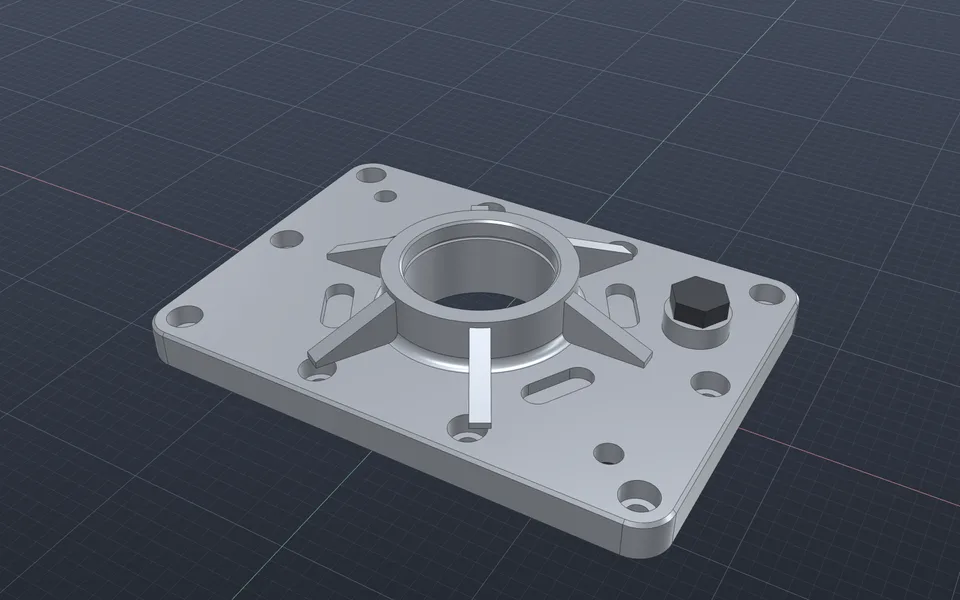
Fix a timeline after a design change
Vector finds the first feature that failed, reselects its lost reference by geometry, and recomputes the rest of the timeline without reverting your edit.
Watch it in Vector