BlogGuides
How to make a SOLIDWORKS BOM that purchasing can actually use
Build a bill of materials from a SOLIDWORKS assembly with part numbers, purchased and made parts separated, fasteners grouped, and an Excel export.
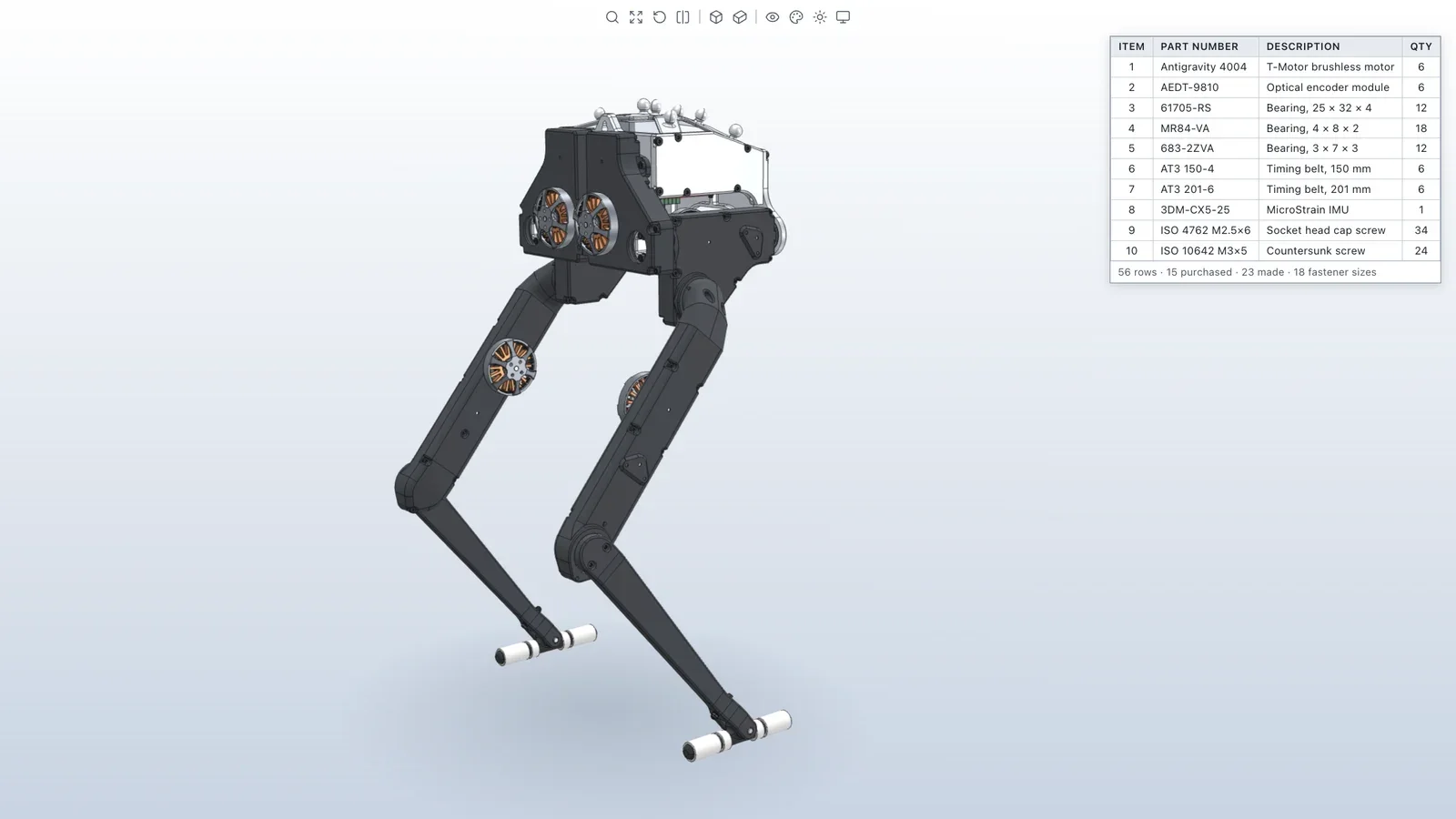
A BOM is only useful if someone can order from it. That means real part numbers, purchased parts separated from what you make, fasteners counted by size, and quantities for the build you’re actually planning.
1. Get the properties right first
SOLIDWORKS builds the BOM from each part’s custom properties. Before inserting a table, make sure parts have a part number, a description, and a source (purchased or made). For purchased parts, add the manufacturer part number and vendor.
2. Insert the BOM
- In the assembly, choose Insert → Tables → Bill of Materials. In a drawing, use the Tables command on the Annotation tab.
- Pick the BOM type: parts only for purchasing, indented for assembly.
- Add columns that map to your custom properties.
- Exclude reference geometry and placeholders from the BOM in their component properties.
3. Organize it
- Sort purchased parts first, then made parts, then fasteners.
- Group fasteners by size and standard, for example ISO 4762 M2.5×6.
- Check quantities against the model. A 345-component assembly might have only 56 unique parts.
4. Export
Right-click the table and save it as Excel or CSV. If you’re building more than one unit, multiply quantities in the export, not in the model.
Doing it with Vector
Ask for the BOM the way you’d ask a colleague: purchased parts separated, fasteners grouped by size, real part numbers, quantities for two units. Vector reads every component, groups them, inserts the table, and exports the spreadsheet. See a BOM built from a walking robot.
Questions
- Top-level, parts-only, or indented BOM?
- Purchasing usually wants parts-only, so every screw and bearing is counted once with its total quantity. Assembly teams often prefer indented, to see what goes into each subassembly.
- Where do the BOM columns come from?
- From custom properties on each part, such as PartNo, Description, Material, and Vendor. Fill those in and the BOM fills itself.
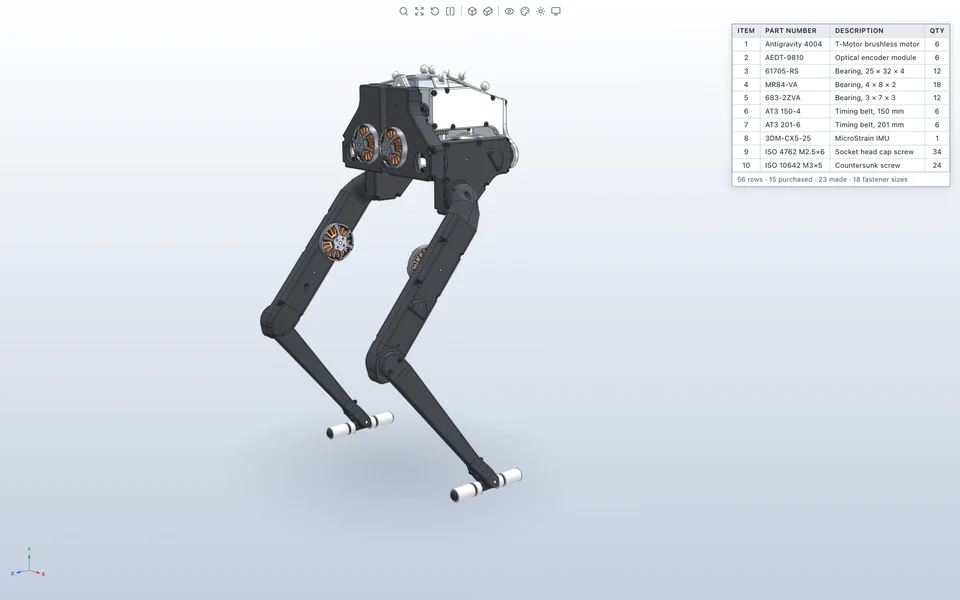
Build a bill of materials you can order from
Vector reads every component, separates purchased parts from the ones you make, fills in part numbers, and exports a BOM with quantities for the build you’re planning.
Watch it in Vector