BlogGuides
SOLIDWORKS Interference Detection: a practical guide
How to run Interference Detection in SOLIDWORKS, which options matter, how to tell real clashes from modeling artifacts, and how to check parts in motion.
Interference Detection finds solids that occupy the same space in a SOLIDWORKS assembly. It’s simple to run and easy to misread. A useful check separates real clashes from modeling habits, and covers the assembly in motion as well as at rest.
Run it
- Open the assembly and go to Evaluate → Interference Detection.
- By default the whole assembly is selected. Remove components to narrow the check, or leave it all for a full pass.
- Click Calculate. Each interference is listed with its volume and the two components involved.
- Select a result to highlight it. Make interfering parts transparent to see where the overlap sits.
Options worth setting
| Option | When to use it |
|---|---|
| Treat coincidence as interference | When touching faces should count, for example press fits |
| Treat subassemblies as components | To skip clashes inside purchased subassemblies |
| Include multibody part interferences | When a multibody part has bodies that must not overlap |
| Create fasteners folder | To group screw-in-hole results so they don’t bury real problems |
| Ignore hidden bodies/components | When you’ve hidden parts that aren’t part of the check |
Real clash or artifact?
- Screw in a tap-drill hole: an artifact of how threads are modeled. Group them in the fasteners folder.
- Bearing pressed into a bore: intentional if the fit is a press fit. Check the volume matches the interference you designed.
- Housing into a bracket by a millimeter: real. Fix the position or the geometry.
Check the mechanism, not just the pose
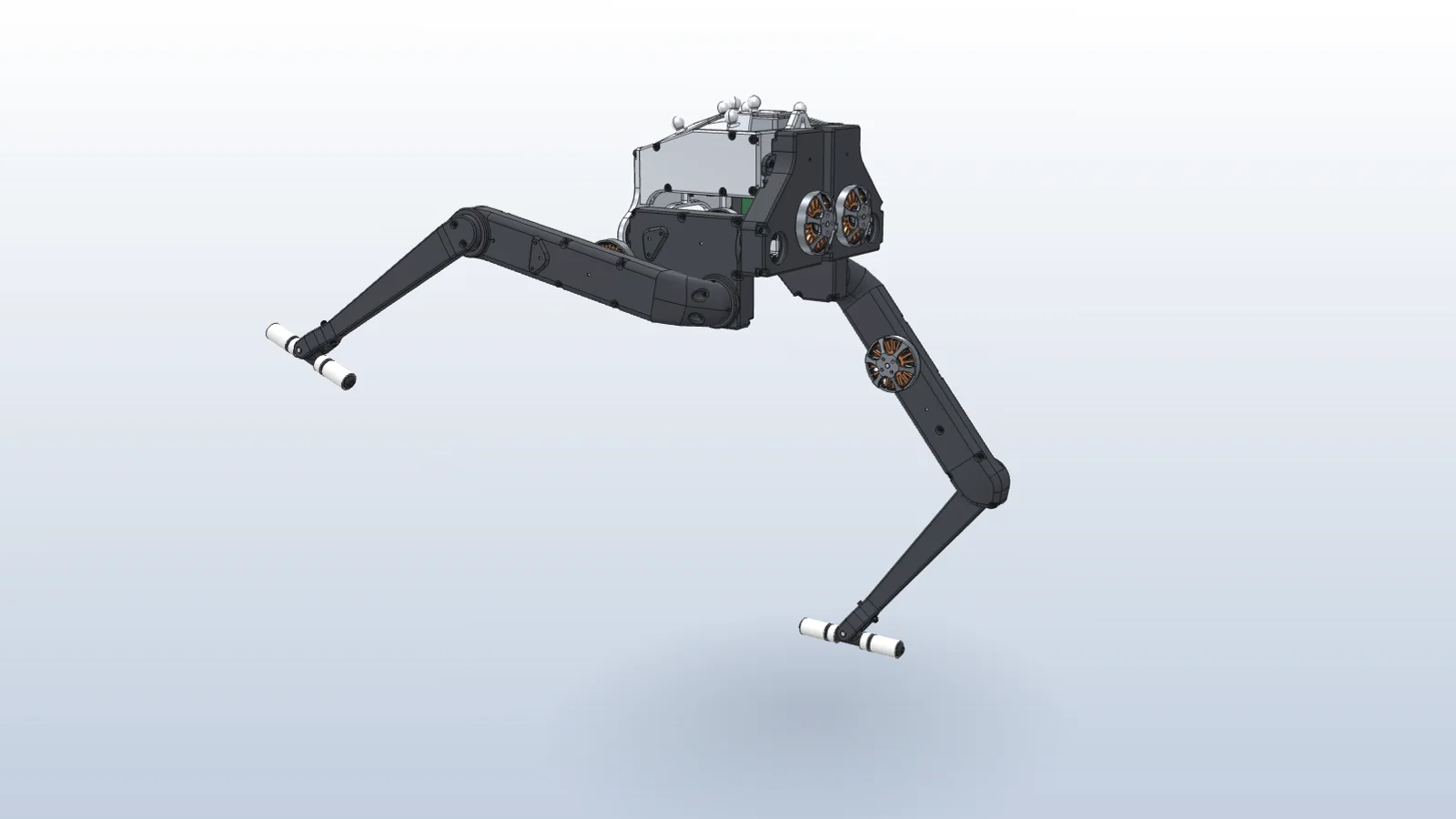
A clean result at rest says nothing about a joint at full travel. Sweep each joint through its range and run the check at the ends, or use Move Component with Collision Detection and Stop at collision. Where parts would collide, add a limit mate a few degrees short of contact. See it done on a six-joint walking robot.
Questions
- Why does Interference Detection flag every screw?
- Screws are usually modeled at full diameter in holes drawn at tap-drill size, so they overlap the hole wall. Use the fasteners folder option to group them, or model the holes with the Hole Wizard and cosmetic threads.
- How do I check interference while parts move?
- Use Move Component with Collision Detection, or sweep the joint through its range and run Interference Detection at the limits.
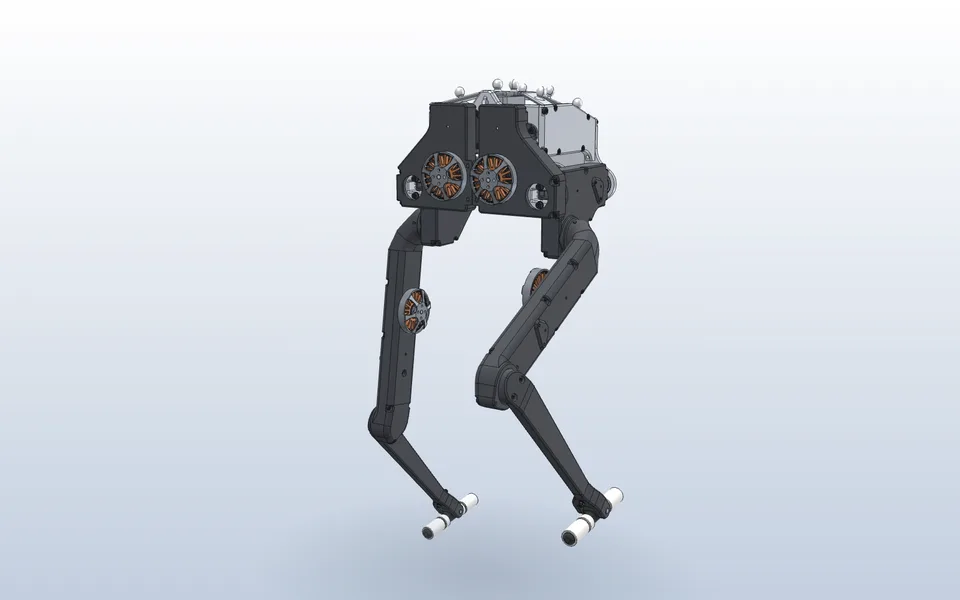
Mate a robot’s legs and check their range
Vector mates each joint to the pulley that drives it, sweeps the hips and knees with Interference Detection, and adds limit mates before anything collides.
Watch it in Vector