BlogGuides
How to add limit mates in SOLIDWORKS and check range of motion
Use limit angle and limit distance mates in SOLIDWORKS to keep mechanisms inside their real range, and find the limits with collision checks instead of guessing.
A hinge mated with a concentric and a coincident spins forever. Real joints don’t: they hit a stop, a housing, or another part. Limit mates keep a SOLIDWORKS mechanism inside its real range, so motion studies and drawings show what the hardware can actually do.
Find the limits first
- Mate the joint so it has one rotation left: concentric with the axis, coincident on the bearing face.
- Use Move Component with Collision Detection and Stop at collision, and drag the part each way until it stops.
- Note the angle at contact in both directions. For a precise number, sweep the joint in steps and run Interference Detection at each one.
- Subtract a margin, a few degrees, for tolerances and cable runs.
Add the limit mate
- Open Mate and expand Advanced Mates.
- Choose Angle (limit) and select two planes or faces whose angle changes with the joint.
- Enter the current angle, then the maximum and minimum from your sweep.
- Drag the part to confirm it stops at both ends.
For a simple hinge, the Hinge mechanical mate combines concentric, coincident, and angle limits in one mate.
Check at the limits
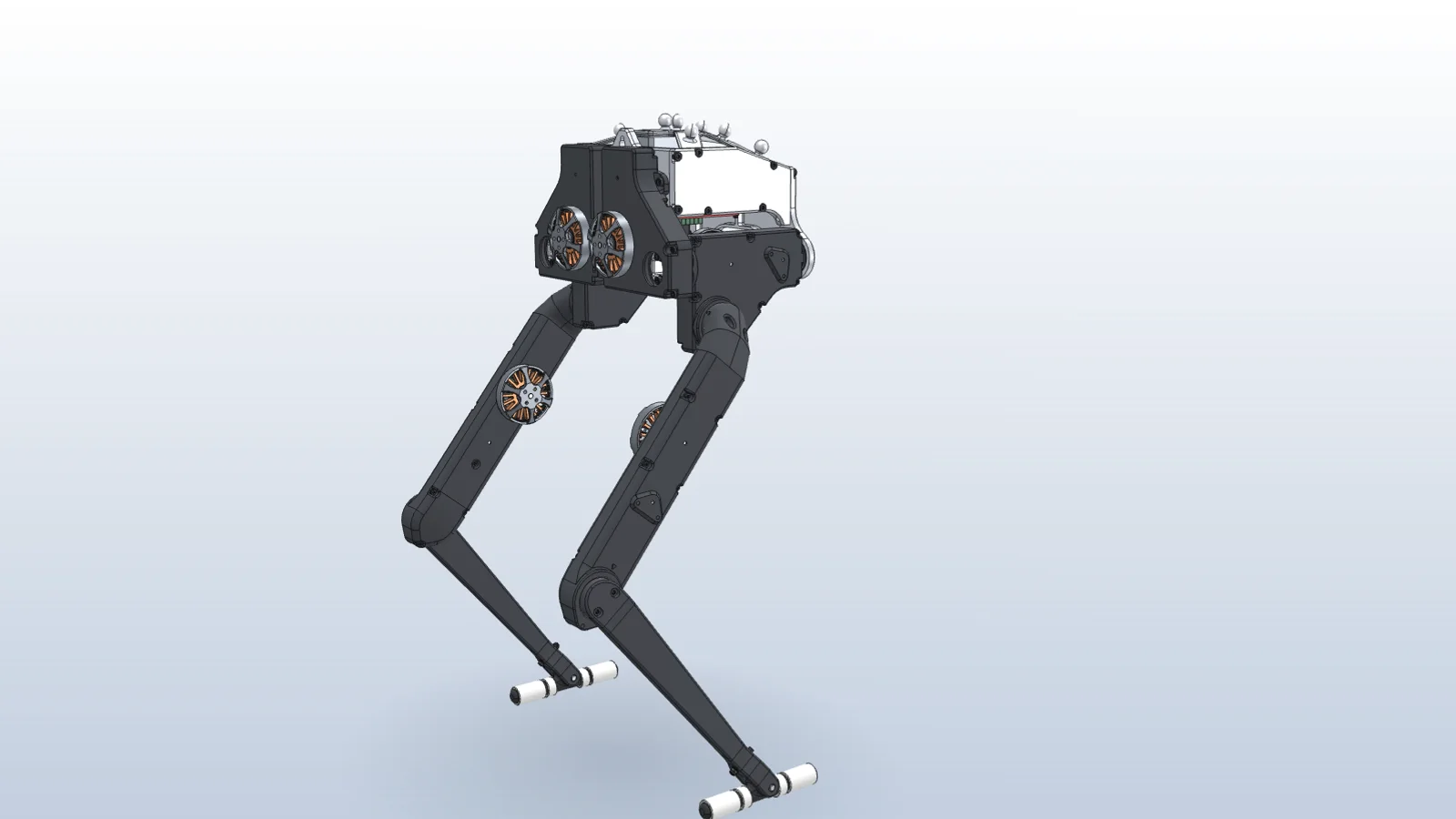
Drive the joint to each limit and run Interference Detection. A clean result at both ends, with the margin you chose, is what you want to see. See hip limits found by sweeping a walking robot’s joints.
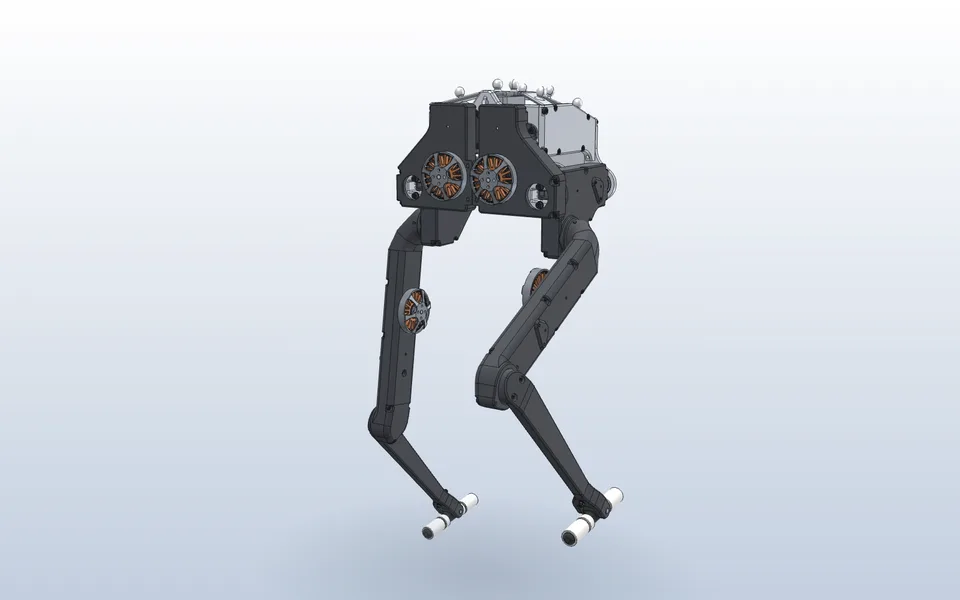
Mate a robot’s legs and check their range
Vector mates each joint to the pulley that drives it, sweeps the hips and knees with Interference Detection, and adds limit mates before anything collides.
Watch it in Vector